When it comes to upgrading to a new version of macOS, we err on the side of caution by blocking/deferring macOS upgrades until an organization has tested, planned, and communicated its readiness to upgrade. With the September 14th release of macOS 27 (Golden Gate), Ntiva is continuing to enforce a 45-day default deferral period to give your teams time to test the new OS before adopting it. This means that your Ntiva-enrolled Macs should not see Golden Gate as an available software update until October 30th. Please reach out to your account manager for assistance with selecting a test device to upgrade so you can ensure your business-critical apps are ocmpatible. If you've already tested the new OS in your environment and would like to unblock it early, please reach out and let us know.
Upgrading is not a question of if; it’s a question of when. The process is simple, but if you upgrade a business-critical device before testing, the new version of macOS could render important apps inoperable, disrupt collaboration, or have other negative consequences. On the other hand, waiting too long can lead to compatibility problems and security concerns (older versions of macOS stop receiving security updates after a certain amount of time).
There’s no immediate reason most organizations would need to upgrade to macOS 27, Golden Gate. If you're not ready to begin testing, you can take your time so long as you’re running macOS 15 Sequoia or macOS 26 Tahoe and are staying up to date with Apple’s security updates. Earlier versions of macOS no longer receive security updates, rendering them more vulnerable to attack. Reasons to delay further include:
-
You’re too busy. The upgrade process will take a few hours, and it may take additional time to configure everything properly afterward. When you are ready to upgrade, aim for when a little downtime will be convenient.
-
You’re using incompatible software. The jump from Sequoia or Tahoe to Golden Gate doesn't include major macOS infrastructure changes, so most modern apps should be updated to ensure compatibility with Sequoia by now or in the coming months. If you’re still running macOS 14 Sonoma or earlier, your apps may be older and need a closer look prior to an upgrade.
- You need consistent versions for workflow reasons. We’re unaware of any significant issues, but it’s not inconceivable that a coworker could be stuck on an older version of macOS and thus older versions of shared productivity apps. If your upgrade would force you to update those apps and introduce compatibility issues when collaborating with that coworker, you may have to wait until your coworker can upgrade as well.
Golden Gate won’t upend your experience of using a Mac, but it has numerous welcome features, both large and small. With the release of OS 27, Apple is improving upon their new UI style called "Liquid Glass". Major improvements with Siri AI and Apple Intelligence bring powerful new AI workflows to your Mac. Spotlight search has once again been improved, to facilitate faster lookup of user context information.
Before You Upgrade
Once you’ve decided to upgrade to Golden Gate, you have three main tasks:
-
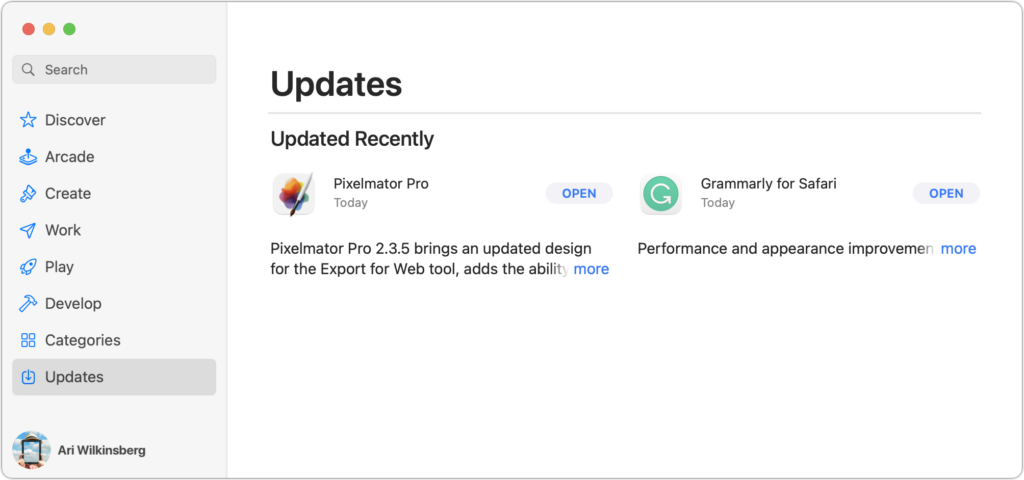
Update apps: Make sure all your third-party apps are up to date. If you regularly put off updates, now’s the time to let them complete, so you have Golden Gate-compatible versions.
-
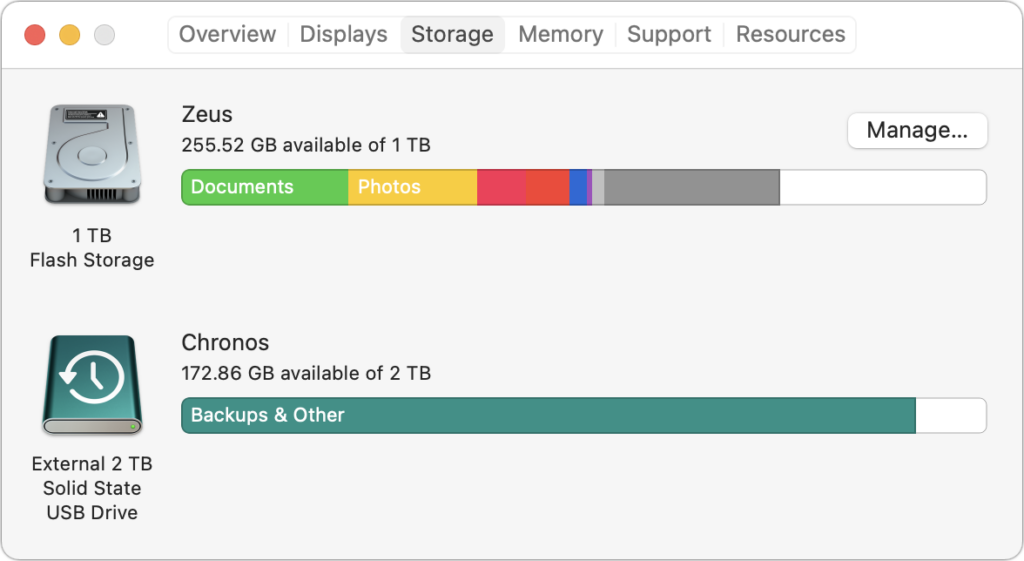
Clear space: Golden Gate needs about 36 GB of free space to upgrade, and the installer itself is about 12 GB, so we recommend making sure you have at least 50 GB free. Don’t cut this close—you should always have at least 10–20% free space for virtual memory, cache files, and breathing room.
-
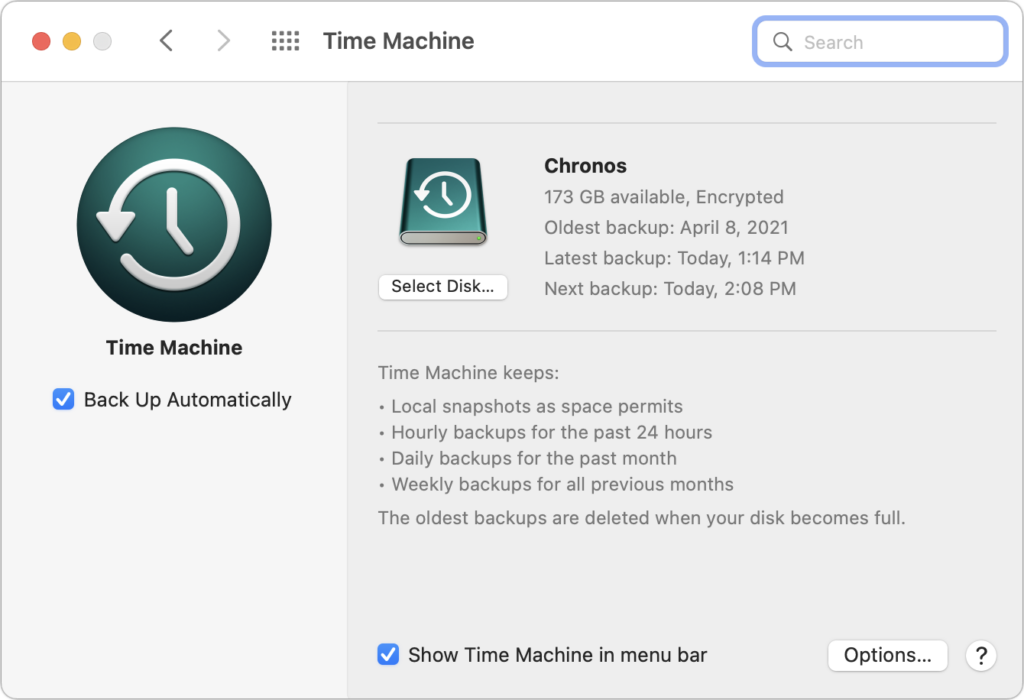
Please make a backup: It’s best to never install a major upgrade to macOS without ensuring that you have at least one current backup first. In an ideal world, you’d have an updated Time Machine backup, a bootable duplicate, and an Internet backup. That way, if something goes wrong, you can easily restore it.
Upgrading
After the above-listed tasks are complete, make sure you don’t need your Mac for a few hours. Upgrades tend to finish in 1-2 hours, but there's no telling exactly how long your upgrade will take, so never start an upgrade if you need the Mac soon.
Many organizations will find a convenient one-click Golden Gate installer in MacManage (this app lives in your Applications folder). If you upgrade using this method, you don’t need to provide administrator credentials to begin the upgrade. If your office has approved the upgrade, but you don’t see either MacManage or the “macOS 27 - Golden Gate - Install Latest Version” item, please reach out to us for a resolution.
Everyone else can initiate the upgrade by opening System Settings > General > Software Update, clicking the Upgrade Now button, and following the instructions. If you’d like additional guidance, check out Joe Kissell’s ebook Take Control of Golden Gate.
After You Upgrade
Part of the reason to set aside plenty of time for your Golden Gate upgrade is that there are usually cleanup tasks afterward. We can’t predict what you’ll run into, depending on what version of macOS you’re running now and what apps you use, but here are a few situations we’ve noticed in the past:
- macOS may need to update its authentication situation by asking for your Apple Account password, your Mac’s password, and, if you have another Mac, its password too. This is not a security breach — it’s expected.
- Some apps may ask you to once again grant accessibility or folder permissions.
- If you use your Apple Watch to unlock your Mac and apps (and you should, it’s excellent!), you may need to re-enable that in System Preferences > Touch ID & Password.
- If you use Gmail, Google Calendar, or other Google services, you may need to log in to your Google account again.
- Websites that usually remember your login state may require that you log in again. If you’re using a password manager like 1Password, that’s easy.
- You may have to re-enable text message forwarding to your Mac on your iPhone in Settings > Messages > Text Message Forwarding.
With all that housekeeping done, it’s time to check out all the new features in Golden Gate!
(Featured image by Apple)
Comments
0 comments
Please sign in to leave a comment.